
Stage 02 · Lesson 1 of 4 · 10 minLive today
Make a page
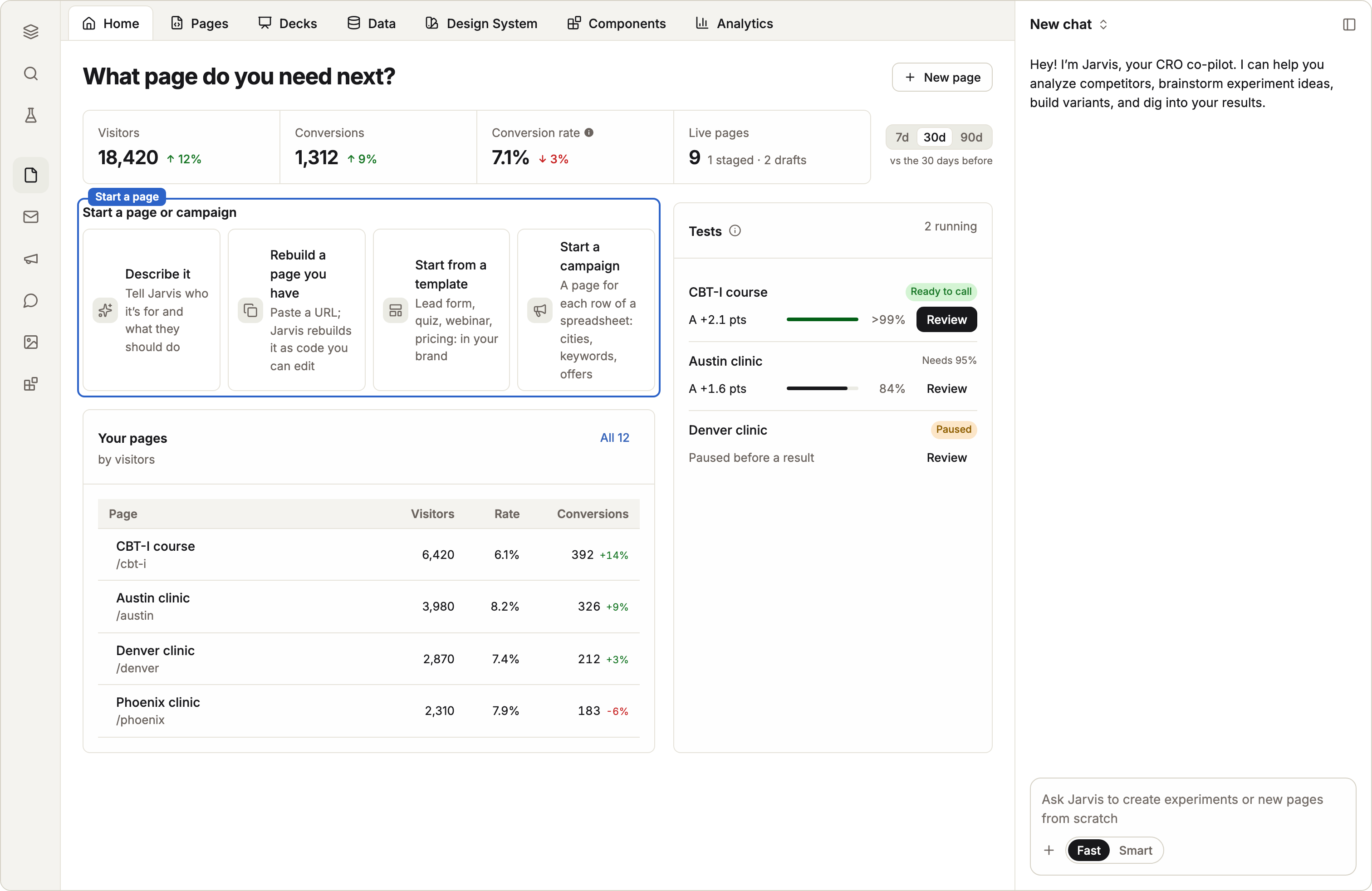
There are three ways to start a page. Each one gives you a draft. Nothing goes live until you publish it.
In this stage · 02 Build · 0 of 4 done
Before you start
Quick version
Landing Pages › New page → pick how to start → Jarvis builds it → look it over.
Steps
Step 1 · In Landing Pages
Choose New page
Open Landing Pages and choose New page.
Step 2 · In New page
Pick how to start
- Describe it. Under Describe the page, say what the page is for, who it's for, and what the visitor should do. Then choose Build page.
- A page you have. Paste its address under Link to the page. Under Design, choose Your brand to rebuild it in your brand, or Its own design to keep its look. Then choose Rebuild page.
- Blank page. Start empty and build it yourself or with Jarvis.
Step 3 · In the editor
Watch Jarvis build it
Watch Jarvis, Coframe's assistant, work. It plans the sections, writes the words and builds the page.
Check it worked
Good to know
- Smart or Fast. Jarvis has two speeds, set above the chat box. Use Smart to build a whole page. Use Fast for small changes, like a word or a color.
- Give Jarvis material. In the chat, type
@to point at another page, or#to attach an image or file. - Rebuilt pages are checked. When you rebuild a page from a link, Coframe compares the result with the original.
- From Figma. The New menu also has From Figma, to build a page from Figma frames.
- Folders. Keep pages tidy with New folder. Put a slash in the name for a folder inside a folder, like
Spring/Search.
If something goes wrong
- The page you linked won't load. Some sites block automated browsers. Try another address, or describe the page instead.
- The result isn't right. Say what's wrong in plain words: "The hero is too tall on phones." Jarvis looks at the same screen you do.
Related: A copy, a variant or a branch?
Next in this stage · 5 min
Edit a page
Click the thing you want to change, or tell Jarvis.