
The words you need, in the order you'll meet them
You can use Coframe Landing Pages with about twenty words. Here they are. Each one says what it is, why it exists, and where to find it.
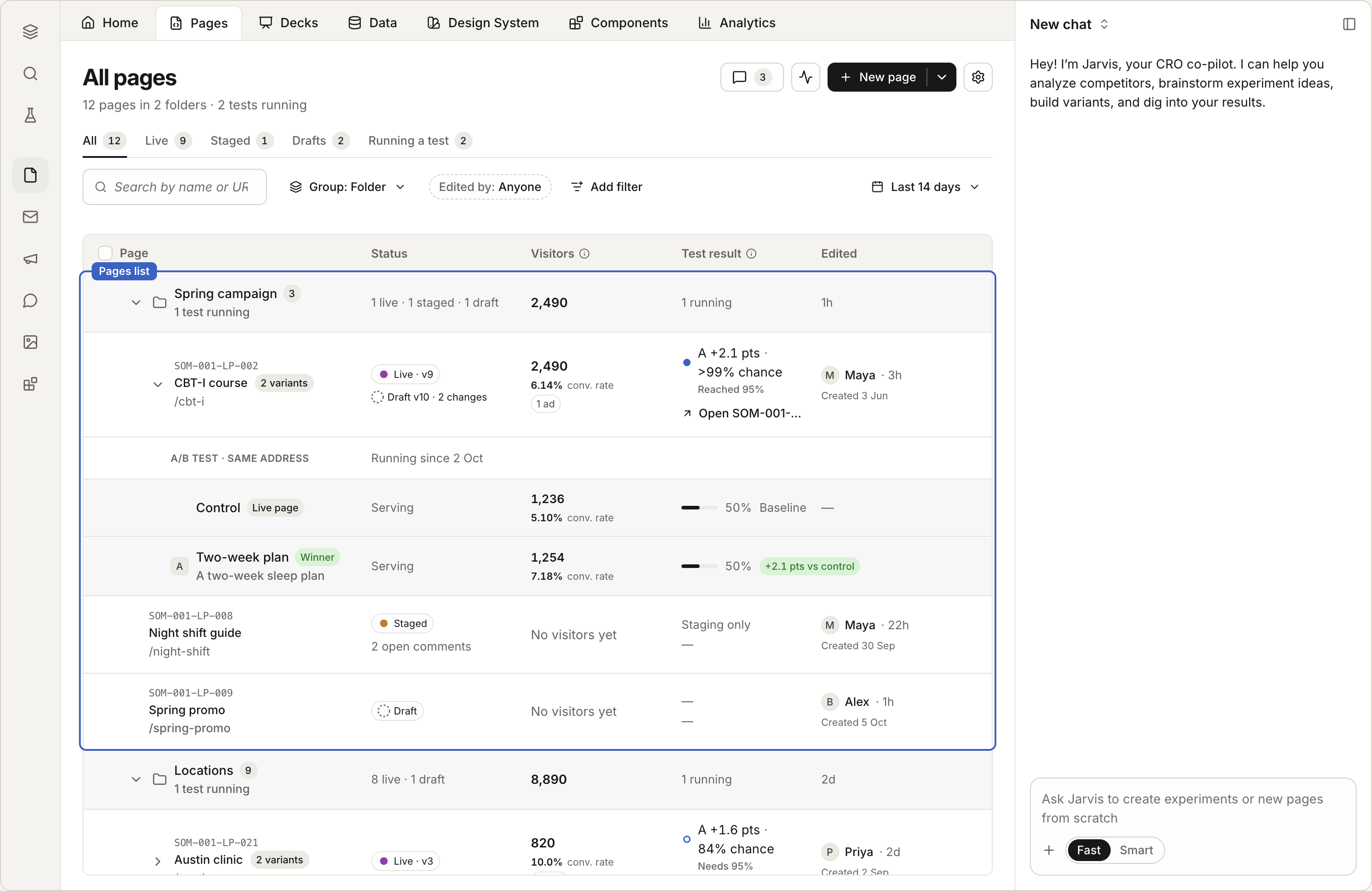
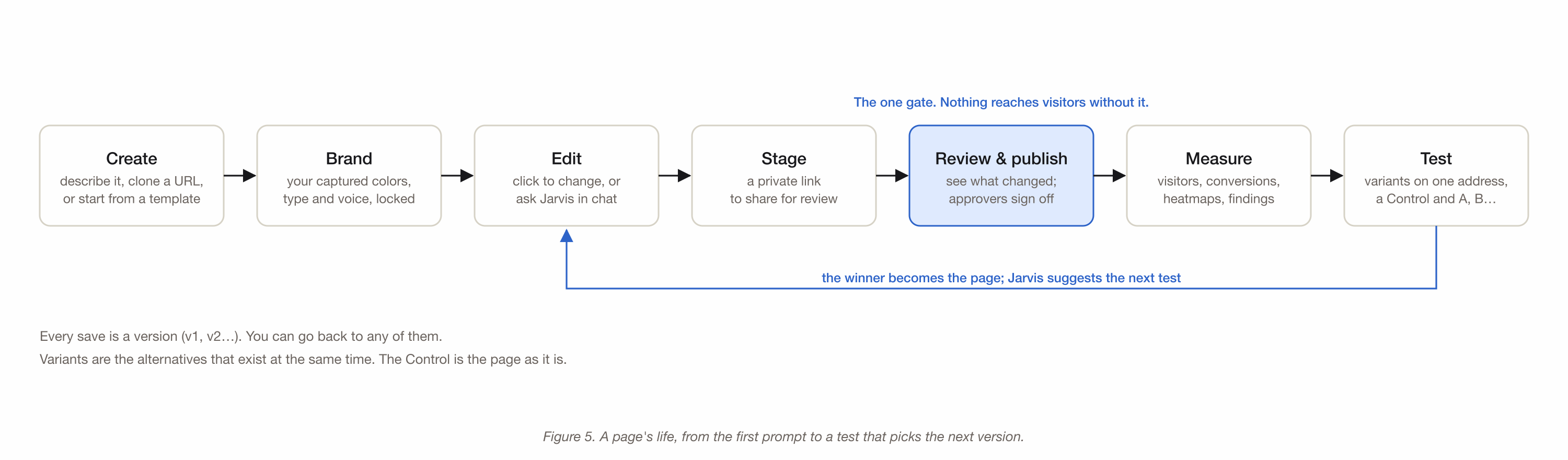
Pages, versions and variants
PageLive today
One web address with one job. It has a draft you edit, a live version visitors see, and a staging link you can share for review.
Version (when)Live today
Every save makes a version: v1, v2, v3. You can look at any version, compare two, or go back.
Draft, Staging, LiveLive today
Draft is what you're editing. Staging is a private link for review. Live is what visitors get.
Variant (which)Live today
Alternatives that exist at the same time on one address. Visitors are split between them. The Control is the page as it is. The others are A, B, C.
TestLive today
Sends each visitor to one variant and measures which one converts better. A test ends when one variant is very likely the best.
CopyLive today
A separate page made from another page, at its own address. A copy is not a variant.
BranchLive today
A copy started from a version, for trying a direction. It publishes to staging only. When it wins, promote it onto the main page.
Brand, parts and templates
BrandLive today
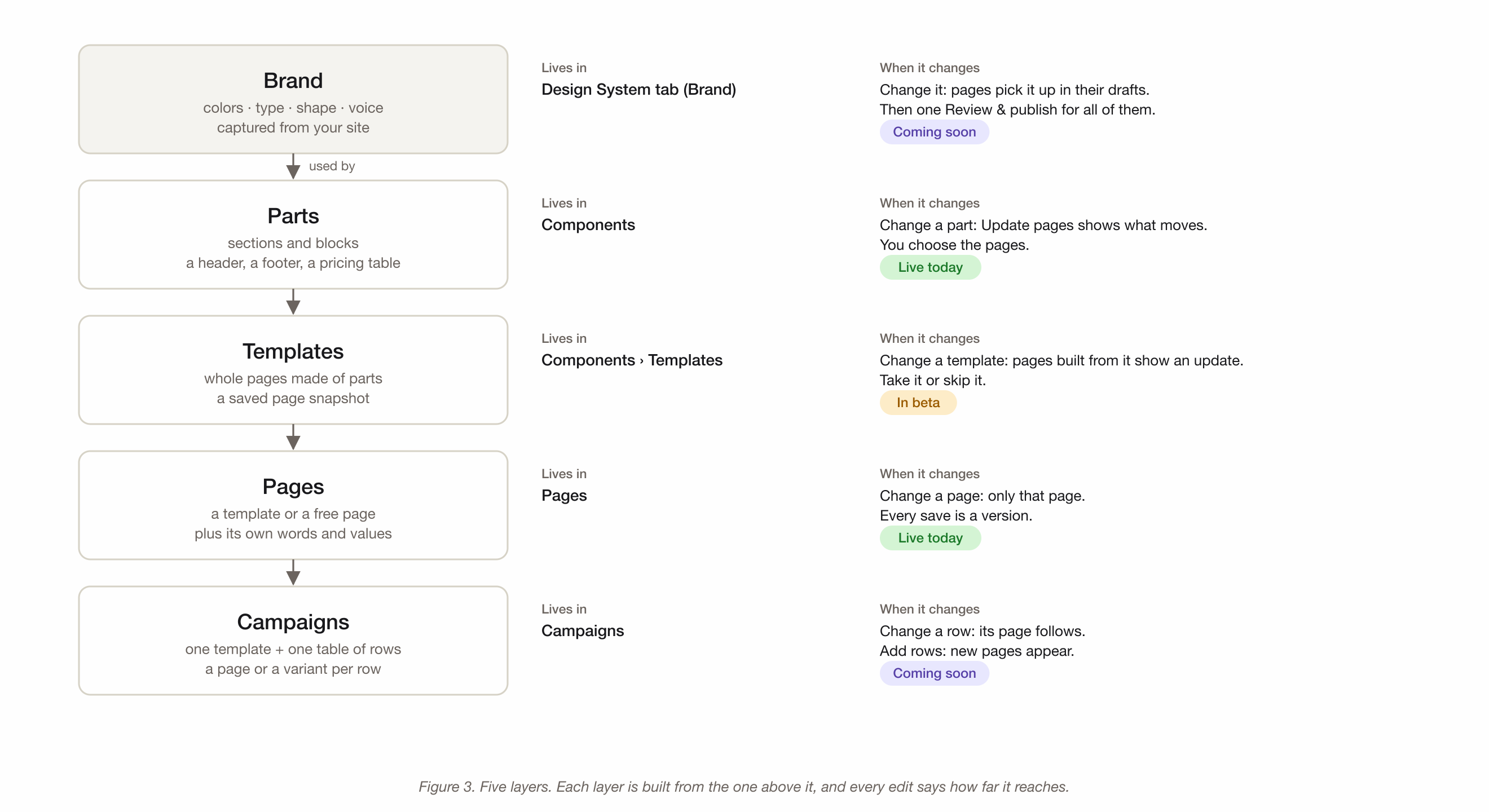
What Coframe learned from your website: colors, type, spacing, shape, and how you write. Every page is generated inside it, and off-brand colors and fonts are snapped back. In the product this is the Design System tab.
PartLive today
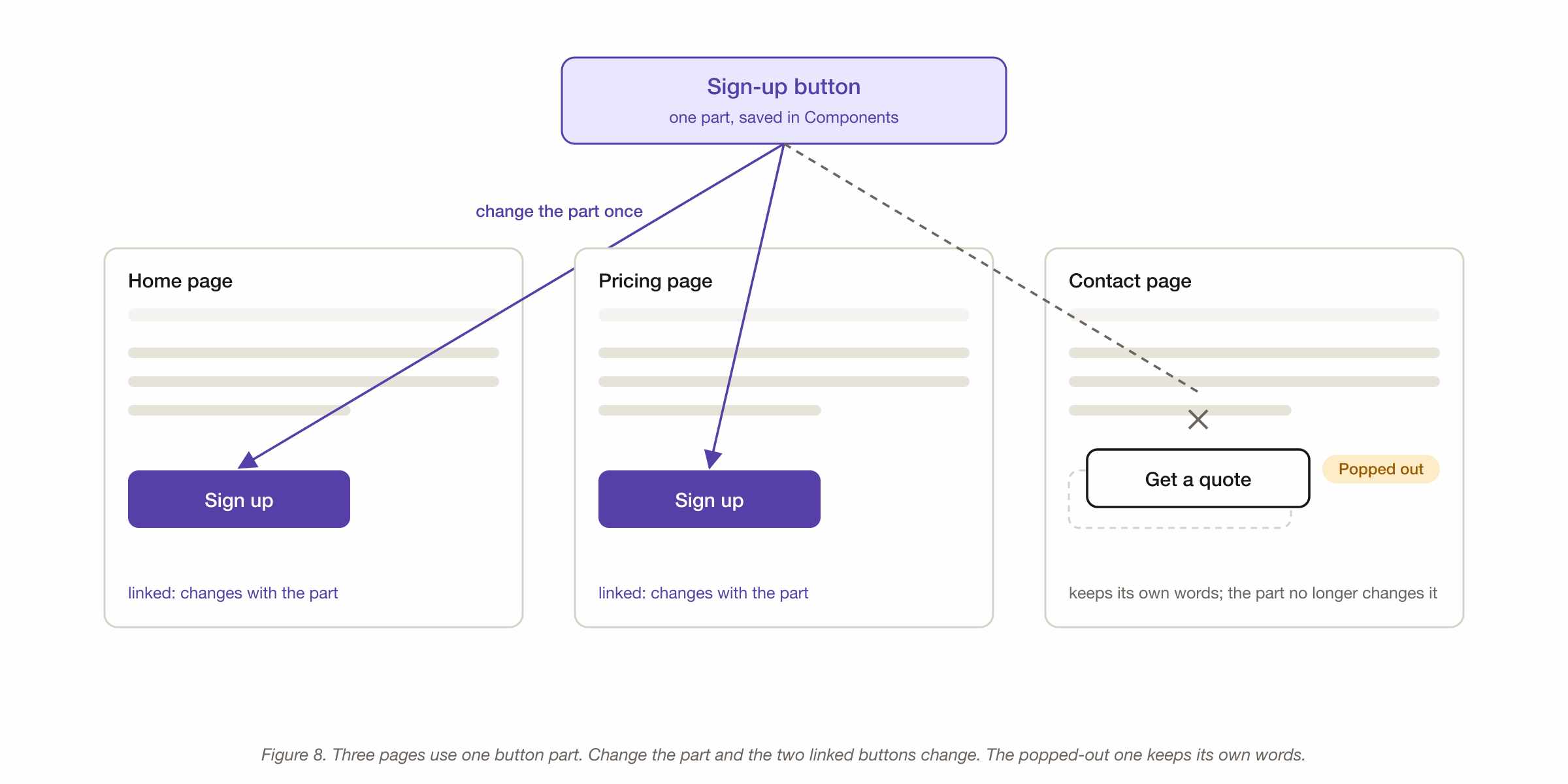
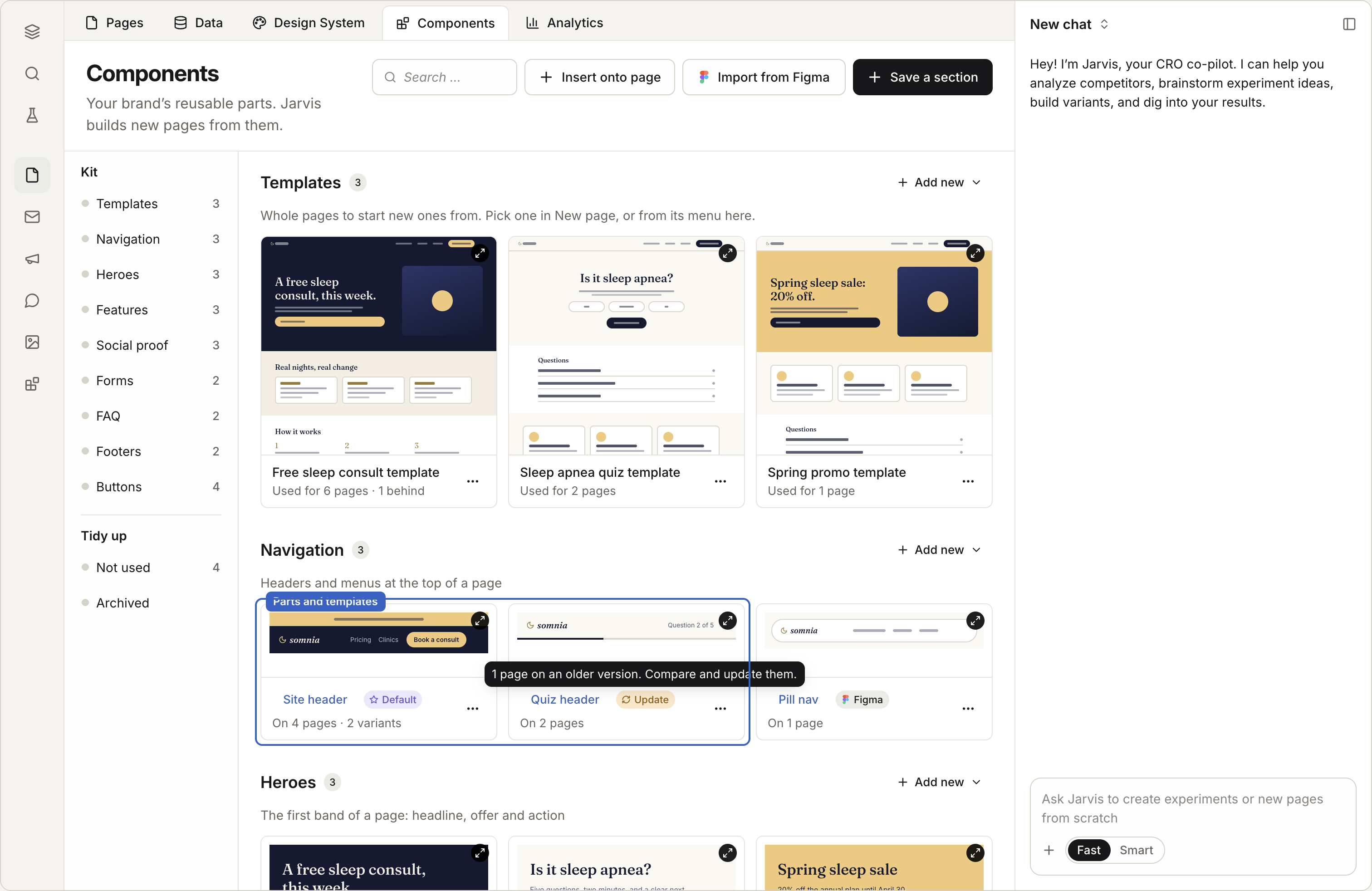
A section or block you save once and use on many pages: a header, a footer, a pricing table. Change the part, and Update pages shows which pages can take the change. You choose. Need one page to be different? Pop that copy out. It keeps its own words and stops following the part.
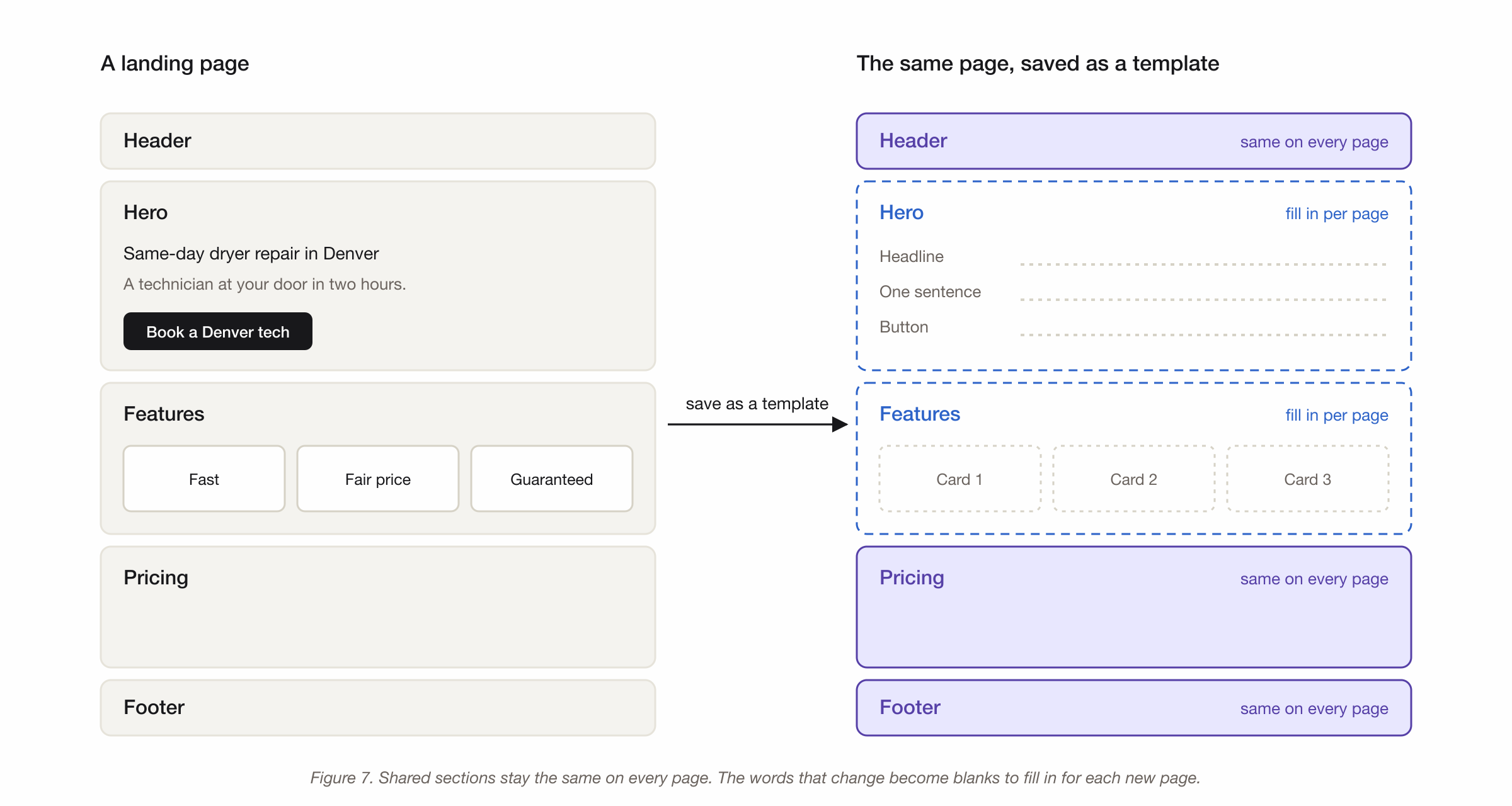
TemplateIn beta
A whole page saved as a starting point. It keeps its linked parts. New pages start from it, and pages built from it can take later updates or skip them.
Components kitLive today
Where parts and templates live, grouped the way a page is built. You can import components from Figma; Figma properties become fields.
Variables, dials and tables
VariableLive today
A named value on a page, like city or headline. Change the value and the page changes, without rebuilding it. Edit many pages at once in a grid.
DialLive today
A control a page exposes, like a color or a size, so anyone can tune it without touching code.
TableLive today
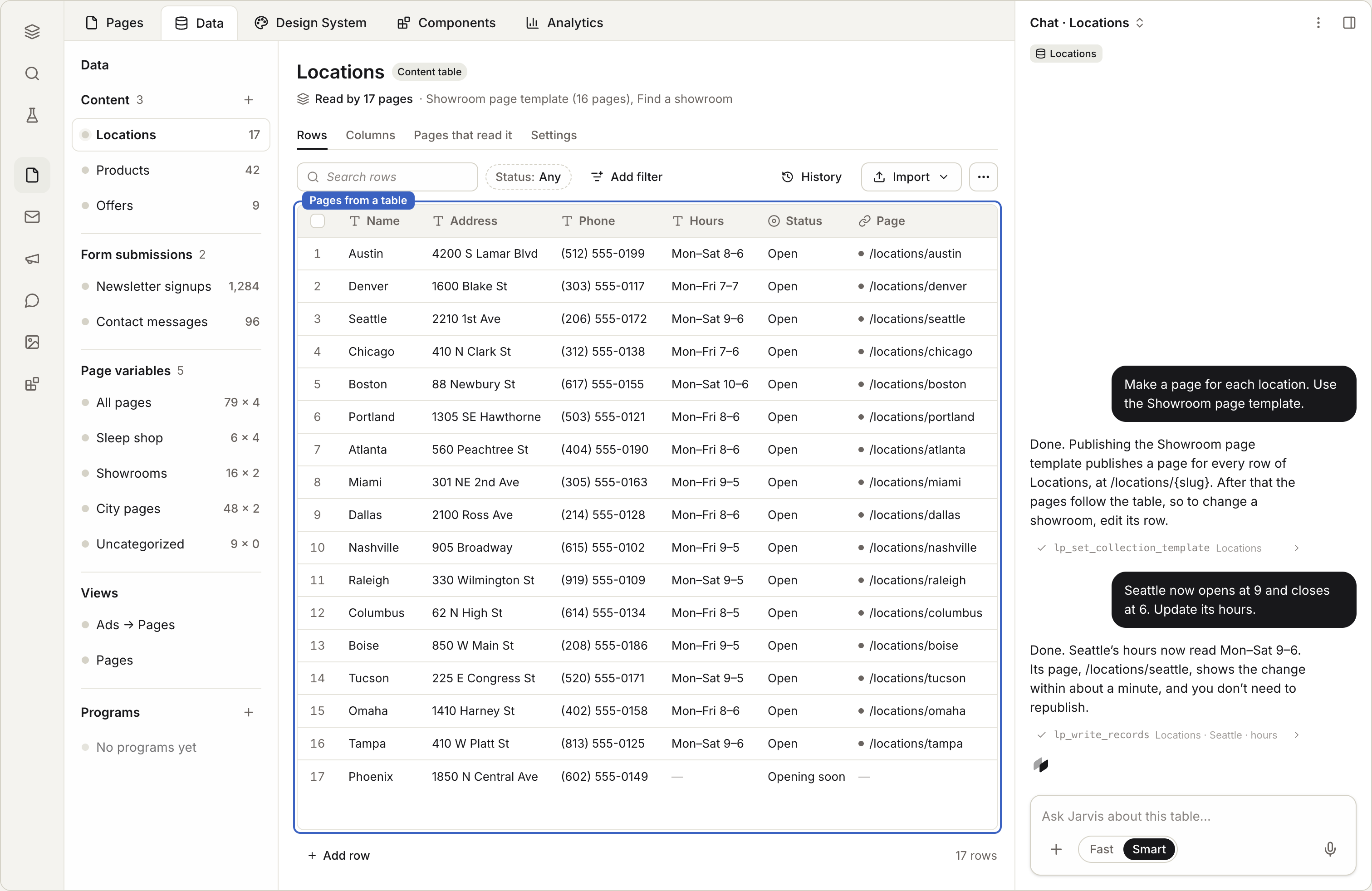
Content that lives outside the page: locations, products, jobs, FAQs, and the responses visitors send through forms. Pages read tables live. Edit a row and the page updates in about a minute.
Collection pagesLive today
One page template plus one table. Each row becomes a page at its own address.
Keeping the table in a Google Sheet, and drafts you review before rows go live: In beta
Where this is goingComing soon
Values that show on the page will be called fields. Inputs that Jarvis writes from, like a keyword or a persona, will be called a brief. Today both are "variables."
Campaigns
Coming soonA campaign makes pages from a list. Each item on the list is a row. A row can be an ad group from Google Ads, an ad from Meta Ads, a row in a sheet, or a keyword or city you type.
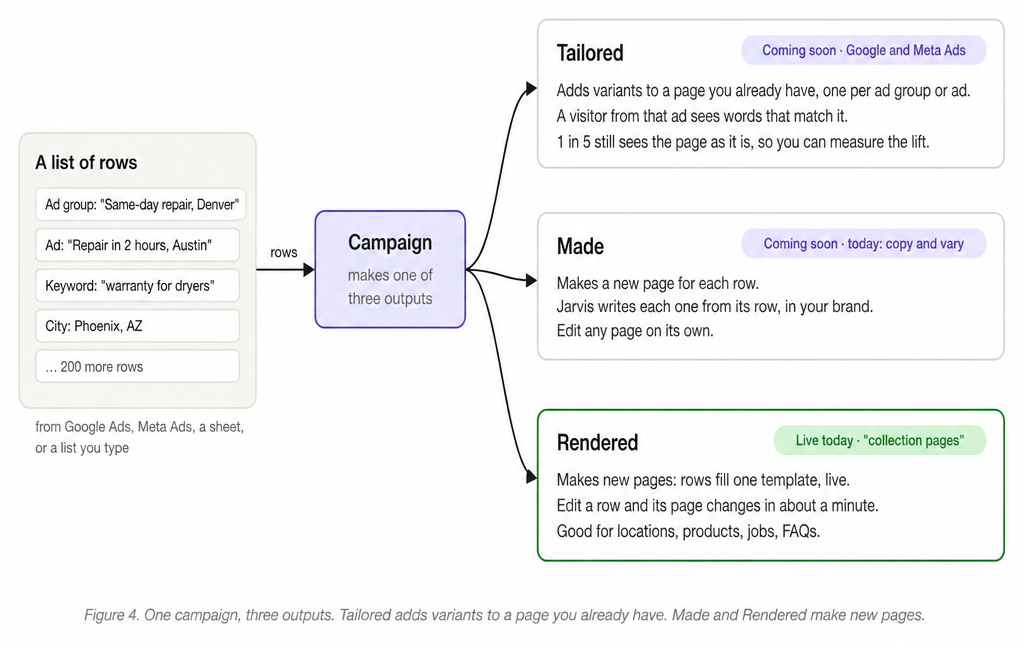
A campaign makes one of three kinds of output:
Tailored. Variants of a page you already have, one for each ad group or ad. A visitor from that ad sees the page with words that match it. One visitor in five still sees the page as it is, so the lift can be measured. Tailored comes first.
Made. A new page for each row. Jarvis writes each one from its row, in your brand. You can edit any page on its own. Made comes after Tailored.
Rendered. The rows fill one template, live. Collection pages do this today.
Measuring and testing
ConversionLive today
The action you count: a form sent, a button clicked, a page reached, a purchase. Set it per page. "Count it" on a button needs no new publish.
AnalyticsLive today
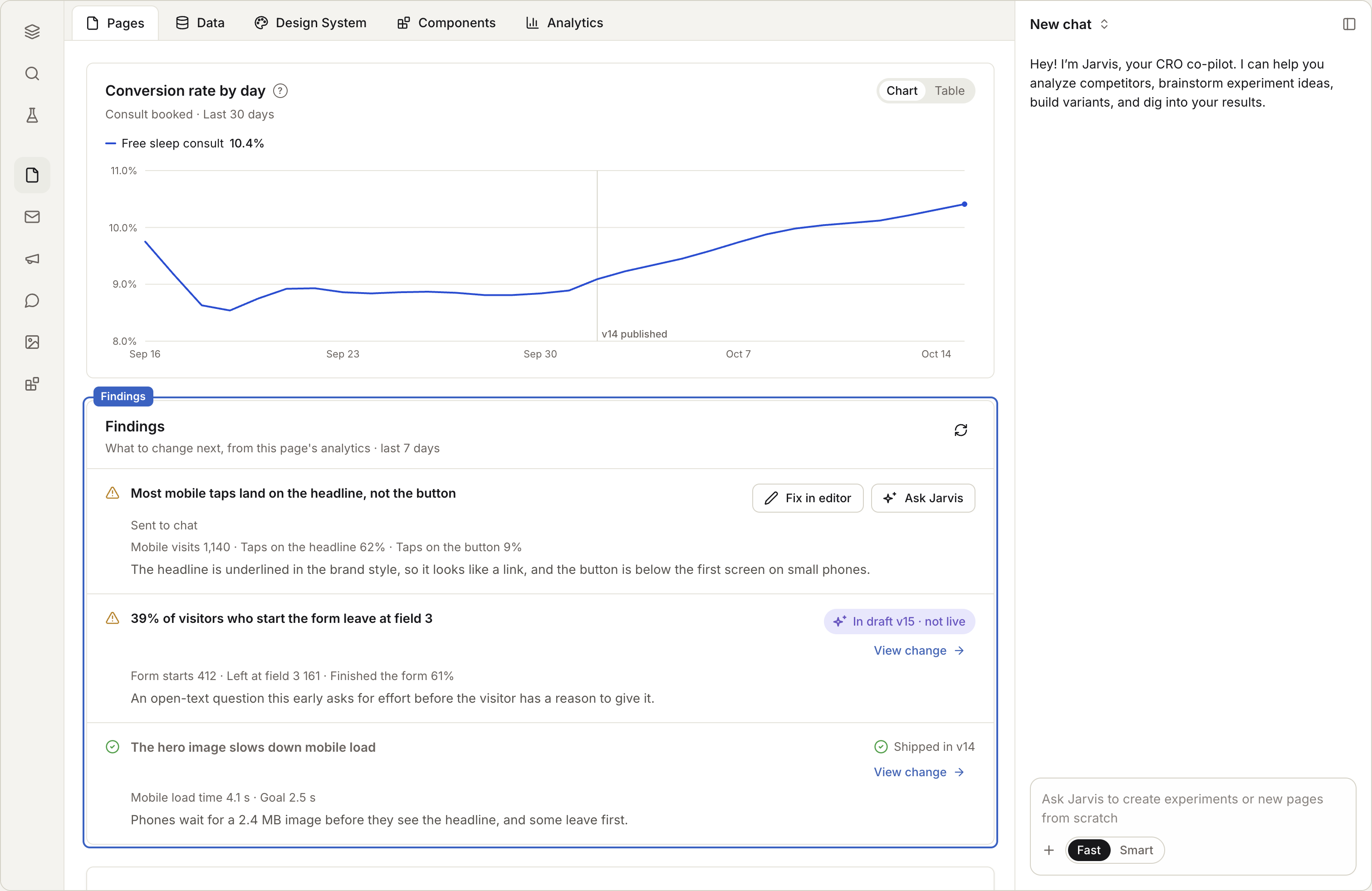
Visitors, conversions and conversion rate by day, with a mark on the day of each publish.
HeatmapLive today
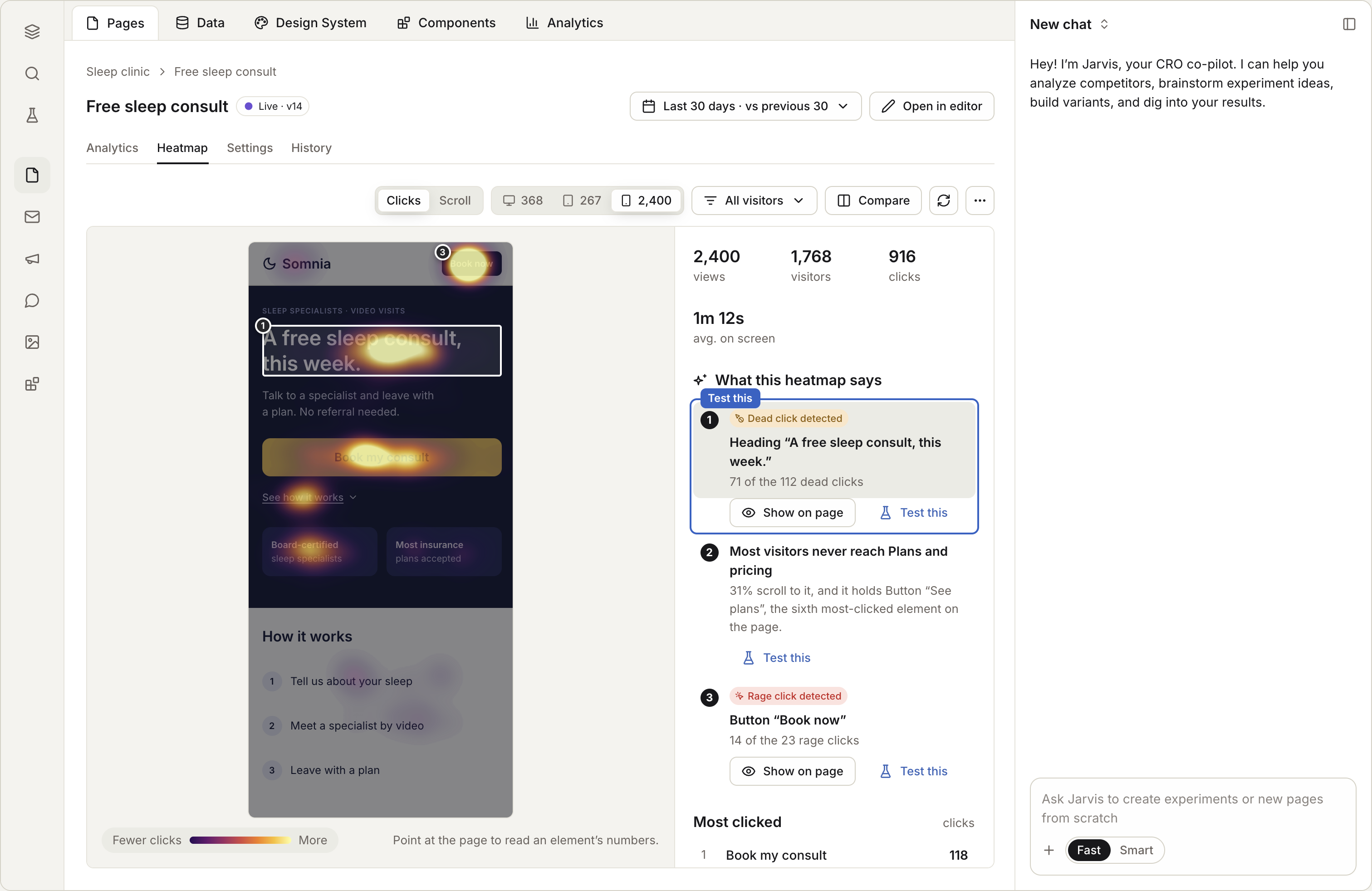
Where visitors click and how far they scroll, by device and by variant. Compare two releases side by side.
Time spent looking at each section: Coming soon
FindingsLive today
Jarvis reads the last seven days against the seven before and tells you what to change, with the evidence. Fix it in the editor, or send it to chat and Jarvis drafts the change. Each finding shows its path from "Sent to chat" to "Shipped."
ResultsLive today
Each variant shows the chance that it's the best. Until there are enough visitors, the page says so, and says how many it needs.
Holdout
A share of visitors who see the plain page, so a lift can be measured against something real.
For tests: Live today
For campaigns: Coming soon
Review, approval and publishing
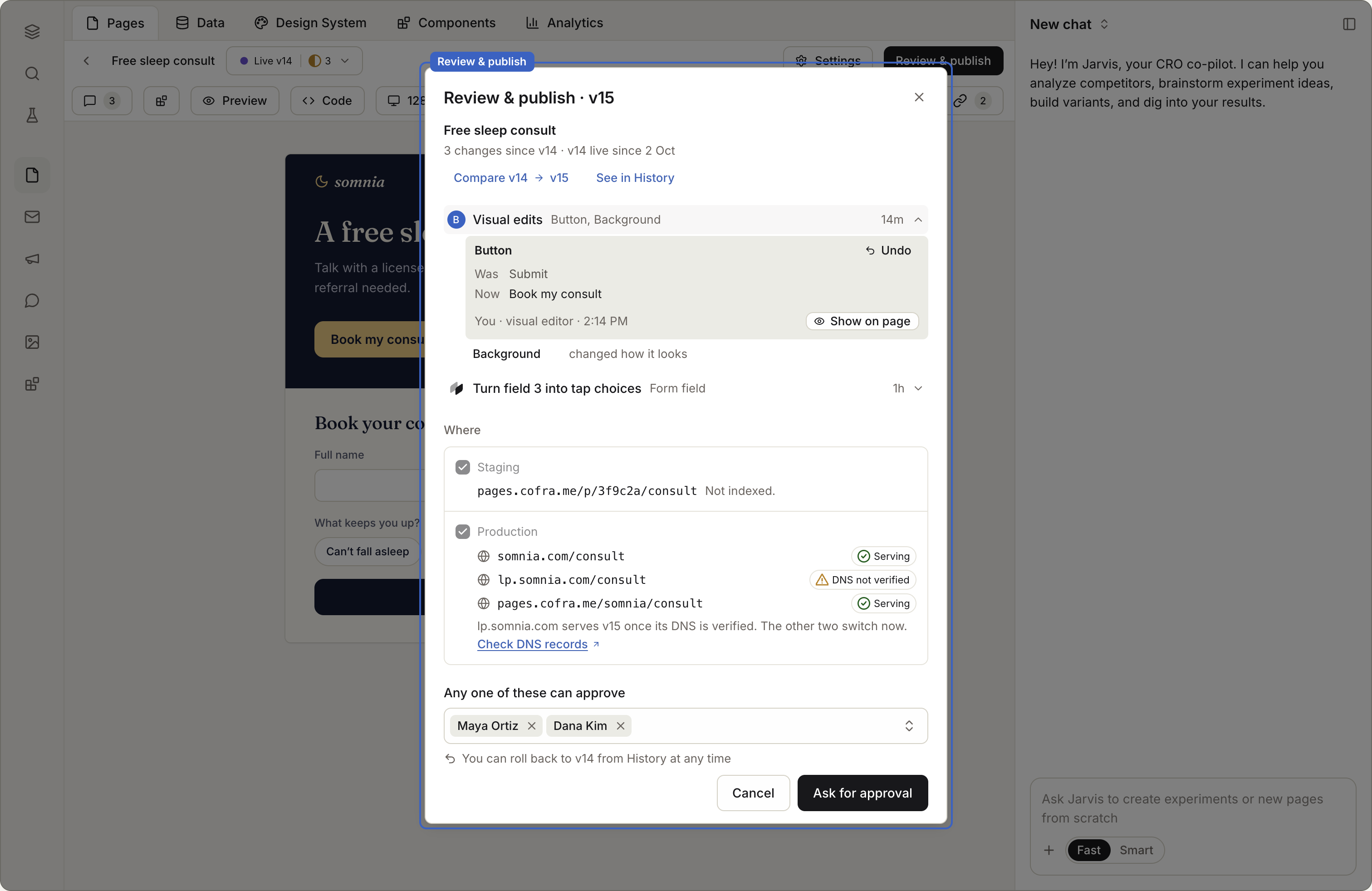
Review & publishLive today
Lists every change since the live version. You choose what goes live, to staging or to production. A code error never replaces a live page.
ApprovalIn beta
Turn on "Publishing needs approval." Approvers see Was and Now side by side and publish the exact version they reviewed. Viewers can't publish.
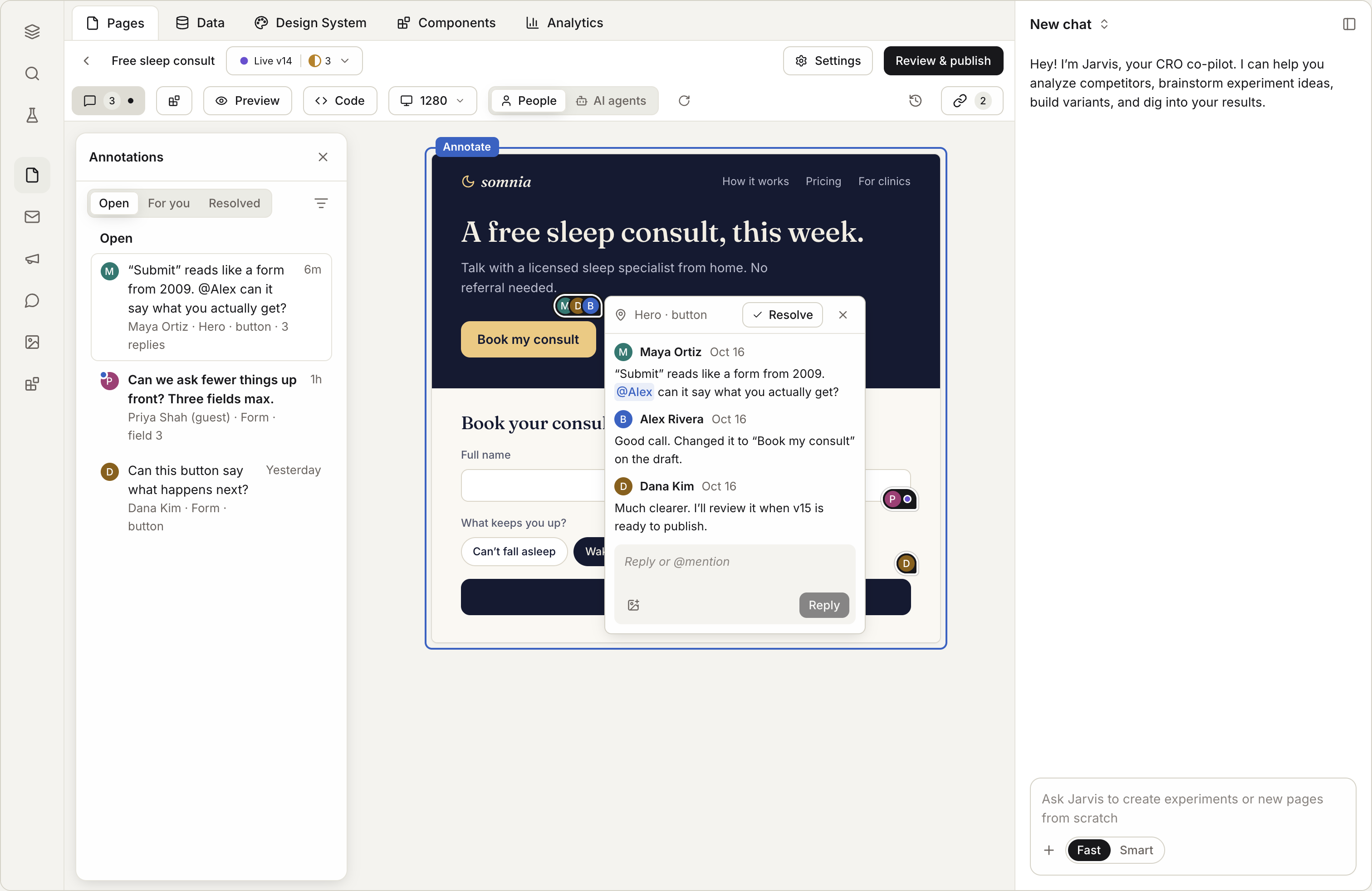
AnnotateLive today
Pin a note to any element. Mention a teammate. Guests can annotate from a link with just a name, no login.
Hand a note to someone by a date: In beta
RollbackLive today
Go back to any kept release. If a publish fails, the last good version is restored on its own.
Domains, search and AI agents
Default addressLive today
Every published page has one on Coframe's pages domain. It's for you and your team; it never shows up in search.
Your domainLive today
A subdomain like go.yourbrand.com takes one DNS record. You can also use your root domain, or a folder on your current site. Connect with Cloudflare in one approval, Route 53 in one click, or send your engineer a link with the exact records.
SearchLive today
Pages on your domain can be found by search engines. Sitemaps and robots files are handled for you. If you mark a page "don't index," that reaches every crawler and AI assistant.
Agent viewLive today
Every page also has a text version for AI assistants, with your facts and your actions. You can read it and edit it.