
Stage 02 · Lesson 2 of 4 · 5 minLive today
Edit a page
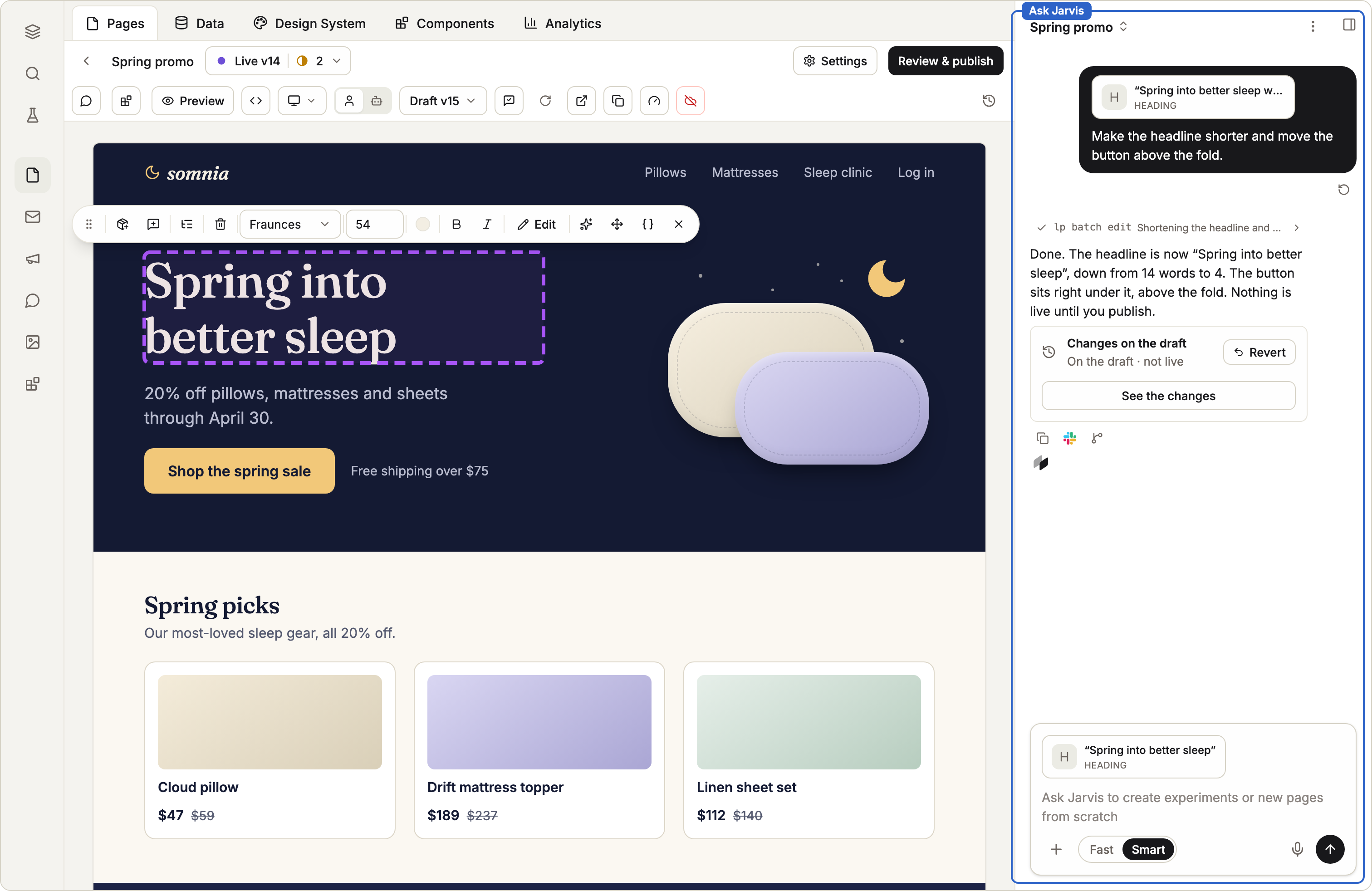
You can change a page two ways. Click the thing you want to change. Or select it and tell Jarvis, Coframe's assistant. Both save a new version, so you can always go back.
In this stage · 02 Build · 0 of 4 done
Before you start
Quick version
Open the page › select a part → change it in the panel, or tell Jarvis → check every screen size.
Steps
Step 1 · In the editor
Click to change it
- Open the page. Make sure the canvas is in Edit mode.
- Click any text, picture or section to select it.
- Change it in the panel on the right: Style, Spacing, Position, Effects, Animate and more. Pictures have Image Edit.
- Switch to Preview to use the page like a visitor. Links, menus and forms work there.
Step 2 · In the chat
Ask Jarvis
- Select the part you want to change.
- Tell Jarvis what to do: "Make this heading two lines," "Swap this image for the product shot," or "Turn this list into three cards."
- Jarvis changes only what you selected, and you watch it happen.
Step 3 · Above the page
Check every screen size
Use the size button above the page. Choose Fit, Desktop, a phone such as iPhone 16, another phone or tablet, or a Custom size.
Check it worked
Good to know
- Undo with ⌘Z (Ctrl+Z on Windows). It steps back through recent versions.
- Your edits survive. Changes you make by clicking are kept on top of the page. If Jarvis rebuilds the page, they stay. The Overrides panel lists them.
- There's code underneath. The Code view shows the page's files. You never need it, but your developer can edit there. A mistake in the code is caught before it reaches a live page.
- Dials. Some pages have controls, like a color or a size, that anyone can change without code. They're in the Component Dials panel.
Related: Get feedback before it goes live · Publish, and go back if you need to
Next in this stage · 15 min
Make pages from a table
One page design plus one table gives you a page for every row.