
Connect your domain
Every page works at a Coframe address from day one. To use your own, like go.yourbrand.com, you connect a domain once. Every page you publish then appears on it.
In this stage · 04 Publish · 0 of 3 done
Before you start
Quick version
Site settings › Domains › Add domain or subfolder → pick one way to finish → Step 1 → Step 2 → Active.
Steps
Step 1 · In Landing Pages
Open Domains
In Landing Pages, open Site settings above the page list, then Domains.
Step 2 · In Domains
Add the address
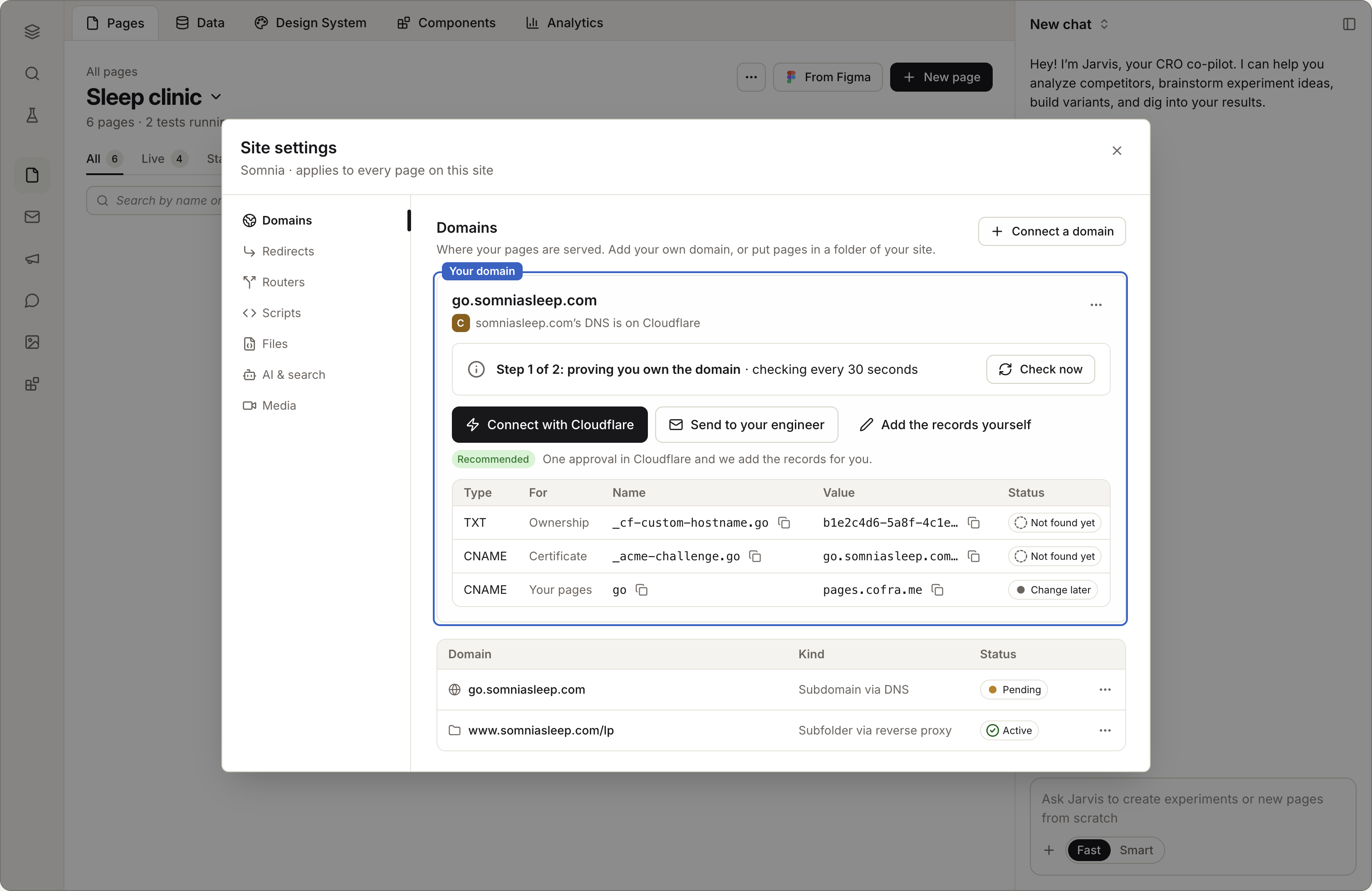
Choose Add domain or subfolder and type the address.
Step 3 · In Domains
Pick one way to finish
- Connect with Cloudflare. If your domain uses Cloudflare, approve once and Coframe adds the records for you.
- Add them myself. Coframe shows the records. Add them where you manage your domain.
- Send to your engineer. Coframe sends them a link with the exact records. It takes them about five minutes.
Step 4 · In Domains
Wait for Step 1
Wait for Step 1 to finish. It proves you own the domain and gets its security certificate. Your current site keeps working.
Step 5 · In Domains
Do Step 2
Then do Step 2, which points the address at Coframe. The panel shows Active when it's done.
Check it worked
Good to know
- Every published page appears on the new domain. Coframe adds all of them. To take a page off, change it in that page's publish settings.
- Choose a home page. In Domains, open the domain and pick the page to show at its root,
/. - Pages keep working at their Coframe address the whole time.
- The panel checks for you every 30 seconds. You don't need to refresh.
If something goes wrong
- It's stuck on Step 1. The record names must match the panel exactly. Some providers add your domain to the name on their own, so type only the part the panel shows.
- Your domain uses Cloudflare. The records need to be set to "DNS only." Your engineer turns that setting on.
- The certificate never arrives. Your domain may limit who can issue certificates. Your engineer can fix it. For your engineer has the details.
Next in this stage · 10 min
Get found in search and by AI assistants
Coframe handles most of this for you. Here's what to set and what to check.