
Stage 04 · Lesson 1 of 3 · 5 minLive today
Publish, and go back if you need to
Publishing puts your draft in front of visitors. Coframe keeps every version, so you can always see what changed and go back.
In this stage · 04 Publish · 0 of 3 done
Quick version
- Open the Publish menu and choose Publish. Check the path, then Publish to Production.
- View unpublished changes… lists every change since the last publish.
- Version history… lets you restore an earlier version, then publish again.
Step 1 · Publish menu
Publish a page
- Open the page and open the Publish menu.
- Choose Publish for production.
- Read the window that opens. It lists what changed and the address the page will have.
- Check the Page path, the last part of the address, like
/spring-offer. - To make the page the first thing people see on your domain, tick Make this the home page.
- Choose Publish to Production.
Step 2 · Publish menu
See what changed
- View unpublished changes… in the Publish menu lists every change since the last publish. Open one to see what it did.
- Revert undoes one change and keeps the others.
- Discard all takes the draft back to what's live now.
Step 3 · Version history
Go back to an earlier version
- Open Version history… from the Publish menu.
- Pick a version to look at it.
- Choose Restore. The version you're leaving is saved first, so you can undo this too.
- Publish again to put the restored version live.
Check it worked
Good to know
- Save a version on purpose before a big change, or when a page is approved. Ask Jarvis, Coframe's assistant: "Save a version called Approved by legal." Saved versions are kept forever.
- A broken page never replaces a live one. Code mistakes are caught before publishing.
- Change the path, keep the visitors. If you change a page's path, the old address sends visitors to the new one.
- Unpublish takes a page offline. Nothing in your workspace is deleted.
- Publish many at once. Select pages in the list and publish them together.
Coming soon
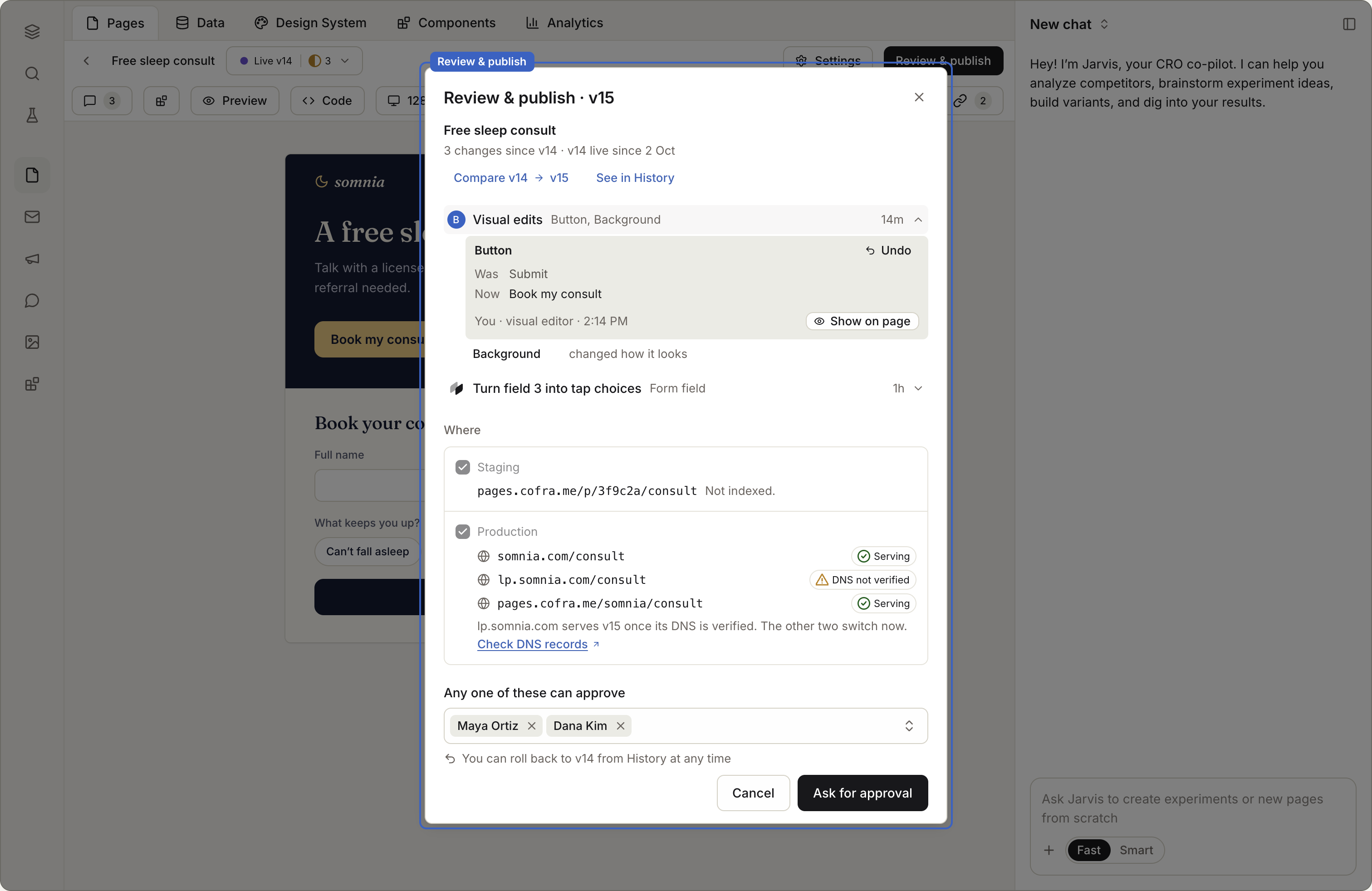
- Review & publish. One view of every change, who made it, and where it will go, with a choice of what goes live.Coming soon
Next in this stage · Lesson 2 of 3